Wednesday, March 26, 2014

Introduction 

A few weeks ago Trend Micro published in their blog the post below: The Siesta Campaign: A New Targeted Attack Awakens. Here they share their research about a targeted attack suffered by all kinds of industries: Energy, Finance, Health care, Public administration... Some days after that, FireEye published in their blog a post called A Detailed Examination of the Siesta Campaign where they accuse APT1 group or another group that uses the same tactics and tools as the guilty party of these attacks.

Thanks to Trend Micro has shared the malware sample's checksum of one variant, I've been able to get a copy of it to get deep into this issue.

Spear-Phishing and Social Engineer Techniques

It is said (in both posts) that this campaign began with an spear-phishing email with links to archives. The file was named "Questionaire Concerning the Spread of Superbugs February 2014.exe" and it was compressed in a ZIP file hosted in a remote server.

I guess that the attackers used the same technique described in APT1 report written by Mandiant. The file could have a PDF extension but the file name actually includes serveral spaces after “.pdf” followed by “.exe”, the real file extension. In the picture bellow you will see the file that looks like a PDF file.
 

If we change to detail view we will see a PDF file...


... but it actually is not a PDF file... It looks like a PDF but it is an executable file...


That is the way this file will be showed in the Desktop. That really seems a PDF file for a untrained eye.


When we run what appears to be a PDF file, the executable drop a real PDF file and it is opened... The normal user could thing that nothing weird has happened... The user received and e-mail with a PDF and now it is already opened...


... but it drops another executable in the background called UIODesrvr.exe. This file is the real malware.


If we look at all process running in our machine, we will see that this malware is being executed.

Brief Malware Analysis

That file was compiled at 2014/02/19.


The first thing the malware does is to connect to www[.]skyslisten[.]com which seems to be the C&C server. This server isn't currently available.


The User-Agent used by the malware is "Mozilla/5.0 (compatible; MSIE 7.0; Windows NT 6.0)".


We can see in our IDA that the first thing the malware does is to check if that code ">SC<" is written within HTML code at the domain mentioned above. If it exists, then it tries to locate some commands written in the web server to be executed. According to Trend Micro, these are the commands used in by this malware.

HTTP code
prefix: “>SC<”

Commands
“run1” open a remote shell
“run2” pipe shell commands from URL1
“run3” pipe shell commands from URL2
“http” pipe shell commands from C2
“x_” sleep for specified number of minutes


This is the typical behavior of a backdoor to begin to start with a lateral movement.

Tracking the attacker

As we said before, the domain www[.]skyslisten[.]com seems to be the C&C server. The picture bellow will show you who registered this domain.


This guy registered microsofthomes[.] com. FireEye says in their report that this  domain is directly connected with the last one mentioned above.

The picture bellow will show you some domains registered by this guy. Only five domains from more than a total of roughly 17,000 domains registered with this same email address said by Trend Micro.

Conclusion

When we talk about APT or Targeted attacks, examples of well-known sophisticated Malware like Stuxnet, Flame, Careto and security breaches suffered by companies like Google, RSA, Adobe, Apple came to my mind ... But as we have seen, it is not necessary to develop a sophisticated malware to perform a Targeted Attack. Obviously, the most sophisticated attack will be most successful...


Posted on Wednesday, March 26, 2014 by Javier Nieto

1 comment

Monday, February 17, 2014

Cuckoo v1.0 was published some months ago but some time has passed since I've had time to install it with my friend cor3dump3d, who has saved me a lot of time...

I have seen some new valuables features in this release. Maybe I will write a post in the future about it but for now, I am going to show you how to avoid to Cuckoo being detected by malware.

It is a trend that the malware uses anti-virtualization techniques in order to avoid being analyzed by Sandboxes like Cuckoo. I've noticed a rise in the malware techniques which use this capability. The modern malware could change their behaviour if it detects that it is being executed in a virtual environment. If you already use Cuckoo to analyze your samples, you also can appreciate other techniques like the detection of debuggers and forensics tools.


We want to maintain our virtual machine hidden from the malware samples, for this reason, we will modify our Sandbox to achieve our goal.

Detecting Virutal Machines with Pafish

A year ago I read here: Hardening Cuckoo Sandbox against VM aware malware that Alberto Ortega had developed a new tool named Pafish. This tool can be executed in a Windows OS and it will detect if it is running in a virtual machine. Some months ago, it was published in the same blog that this tool had been used by some malware developers to add it to their malware in order to detect if the malicious program was running in a virtual environment to change its behaviour. In the link below you have a great post about it: How public tools are used by malware developers, the antivm tale

So we are going to use this free tool to check if our virtual machine could be detected by some anti-virtualization techniques. The tool is available in the link below.


After executing Pafish, we can see the picture below which shows us that Pafish detected that the hard drive has less than 50GB storage. It is just a recommendation that if you are able to give more storage to your virtual machine, just do it!!! Do you know someone who has a computer with less than 50gb? I don't and for this reason, the malware could suspect that it is being run in a virtual environment.


In the picture below you will see how Pafish has detected the Register Keys related with VirtualBox.


This tool creates a pafish.log which contain these lines.
[pafish] Start
[pafish] Windows version: 5.1 build 2600
[pafish] Sandbox traced using mouse activity
[pafish] Sandbox traced by checking disk size <= 50GB
[pafish] Hooks traced using DeleteFileW method 1
[pafish] VirtualBox traced using Reg key HKLM\HARDWARE\DEVICEMAP\Scsi\Scsi Port 0\Scsi Bus 0\Target Id 0\Logical Unit Id 0 "Identifier"
[pafish] VirtualBox traced using Reg key HKLM\HARDWARE\Description\System "SystemBiosVersion"
[pafish] VirtualBox traced using Reg key HKLM\SOFTWARE\Oracle\VirtualBox Guest Additions
[pafish] VirtualBox traced using Reg key HKLM\HARDWARE\Description\System "VideoBiosVersion"
[pafish] VirtualBox traced using file C:\WINDOWS\system32\drivers\VBoxMouse.sys
[pafish] End

Hinding our Virtual Machine

I was reading some interesting blogs when I discovered this entry: Installing and hardening the latest Cuckoo Sandbox on Gentoo Linux which saved me a lot of time.

Hubert Kromer has created a modified cuckoomon.dll to avoid being detected by the malware and he shares it with us here.


You only need to replace the original one by the modified DLL in this path:
/path/to/cuckoo/analyzer/windows/dll/cuckoomon.dll
When this DLL is replaced (you don't need to restart Cuckoo) just send to Cuckoo Pafish.exe again. You can see the differences between using this DLL and using the other one.


We can see in the Pafish.log file that our Sandbox is still be traced  but as you can see, we will be able to avoid detection in the majority of traces that we were detected before.
[pafish] Start
[pafish] Windows version: 5.1 build 2600
[pafish] Sandbox traced using mouse activity
[pafish] Sandbox traced by checking disk size <= 50GB
[pafish] Hooks traced using DeleteFileW method 1
[pafish] End

Now, we need to figure out how we can avoid being detected by malware by not using the mouse in our automatic analysis. If you have some info about that, just let us know!!!

Posted on Monday, February 17, 2014 by Javier Nieto

5 comments

Sunday, February 09, 2014

As you already know, Parsero is a free script written in Python which helps you to automatically audit the Robots.txt file of a web server. In just a few seconds, you are able to get a lot of valuable information which is needed  when you are auditing a website.

This tool is available for download here:

https://github.com/behindthefirewalls/Parsero

And here you can learn what Parsero already did.

http://www.behindthefirewalls.com/2013/12/parsero-tool-to-audit-robotstxt.html

How to install Parsero v0.6

Parsero is really easy to install. You can install it  for example, in Kali Linux. You only need to run the commands below.
apt-get install python3
apt-get install python3-pip
pip-3.2 install urllib3
pip-3.2 install beautifulsoup4
git clone https://github.com/behindthefirewalls/Parsero.git

What's new?

If you look at the Parsero help, you will see two new features:

  • "-o" :   To only show the available Disallow entries.
  • "-sb" :  To search in Bing indexed Dissallows.

Showing only the available Disallows

In the picture below you will see the difference between using the "-o" option and not using it.

If the robots.txt file has a few entries, I recommend you don't use the "-o" option because you will be able to figure out what type of content the administrator wanted to hide looking if you get all the results. But if the file is bigger, you have a lot of information to analyze and it is easer perform the audit getting only the links which are allowed to be visited.


Searching the Disallows entries in Bing

The fact that the administrator wrote a robots.txt to try to hide the crawlers part of his content doesn't mean that the search engines don't index these Disallow entries.

For example, in the picture below, Parsero will find content indexed by Bing which it mustn't have been indexed. Parsero will show you the first 10 Bing results for the indexed Disallows.

By doing CTRL+ click on the links, your browser will be redirected to:

  • White links: the search page in Bing.
  • Green links: directly to the result found in Bing (the content is not always available and sometimes you will get a 404 HTTP code error).


Posted on Sunday, February 09, 2014 by Javier Nieto

3 comments

Tuesday, February 04, 2014

Kippo features

A few months ago I could get access to a SSH Honeypot called Kippo. Kippo is designed to log SSH brute force attacks and the entire shell interaction performed by an attacker when the attack is successful.

The main features of this software are:

  • To record the usernames and password which the attacker is trying to perform a brute-force attack.
  • To create a valid username/password like "root/root" to offer the attacker a fake filesystem (resembling a Debian 5.0) with the ability to add or remove files and save the command executed by the attacker.
  • To save suspicious files downloaded (via wget) by the attacker.
  • Possibility of adding a /etc/passwd file so the attacker can 'cat' it.

Installing Kali Linux in a Raspberry-PI

I decided to install Kippo at home. A HoneyNet should be available 24x7x365 because the longer it is available, the more events will be captured.

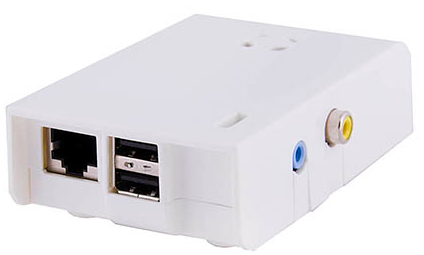
You already know that a Raspberry-PI is really cheap (around 50$ all included) and it has a lower power consumption. Because of that I will show you how to install it on your device.

Currently, Kali Linux is available for Raspberry-PI. I think is a good idea to install our HoneyNet on it. We will have the opportunity to use all tools hosted in this distribution at the same time our Kippo is running.

You can download Kali Linux for Raspberry-PI here: kali-linux-1.0.5-armel-rpi.img.xz

To install the Kali Linux version connect the SD card to your computer. In my case I have a 8gb SD card and I can detect where it is mounted by using the command below.
sudo fdisk -l

When you already know where your SD card is mounted, execute this command  to copy Kali Linux to the card and wait for a while (the time estimated to copy it will depend on how speedy your card is).
sudo dd if=kali-linux-1.0.5-armel-rpi.img of=/dev/sdb bs=512k

How to install Kippo

We won't only install Kippo, we will also install a MySQL database to save the events and Kippo-Graph to look at these events in a Web interface.

Please, follow the next steps to install Kippo.
sudo apt-get install subversion python-twisted python-mysqldb apache2
1. Install MySQL
root@kali:/# apt-get install mysql-server
root@kali:/# apt-get install mysql-client
2. Create the database and a user named Kippo with all privileges.
root@kali:/# mysql -h localhost -u root -p
mysql> create database kippo;
mysql> GRANT ALL ON kippo.* TO 'kippo'@'localhost' IDENTIFIED BY 'Kippo-password';
exit
3. Download Kippo from http://kippo.googlecode.com/files/kippo-0.8.tar.gz and uncompress it at /usr/local/src/.

4. Create the tables using the user just created.
root@kali:/# cd /usr/local/src/kippo-0.8/doc/sql/
mysql> mysql -u kippo -p
mysql> use kippo;
mysql> source mysql.sql;
mysql> show tables;
exit


5. Add to kippo.cfg the lines bellow.
[database_mysql]
host = localhost
database = kippo
username = kippo
password = Kippo-password
6. Create an unprivileged user to start Kippo and give him access to the folder.
root@kali: useradd -d /home/kippo -s /bin/bash -m kippo -g sudo
root@kali:/usr/local/src# chown -R kippo kippo-0.8/
7. Install the packages required for Kippo-Graph.
sudo apt-get update
sudo apt-get install libapache2-mod-php5 php5-cli php5-common php5-cgi php5-mysql php5-gd
8. Download Kippo-Graph
root@kali:/# wget http://bruteforce.gr/wp-content/uploads/kippo-graph-0.8.tar
root@kali:/# mv kippo-graph-0.8.tar /var/www/
root@kali:/var/www# tar xvf kippo-graph-0.8.tar --no-same-permissions
chmod 777 generated-graphs
vim config.php #enter the appropriate values
sudo /etc/init.d/apache2 restart
9. Start Kippo
root@kali:/usr/local/src/kippo-0.8# su kippo
kippo@kali:/usr/local/src/kippo-0.8# ./start.sh 

With Kippo just installed, you need to publish the service in the Internet. By default, Kippo listens in the port 2222. You can publish it by setting a PAT, I mean,  redirecting in your router the port 22 from the external IP to the port 2222 of the Kippo's internal (private) IP.

Looking at the graphs

To see the graphics, just get access to http://Raspberry-Pi_IP_Address/kippo-graph/

You will see these graphics:

  • Top 10 passwords
  • Top 10 usernames
  • Top 10 user-pass combos
  • Success ratio
  • Successes per day/week
  • Connections per IP for previous month
  • Successful logins from the same IP
  • Probes per day/week
  • Top 10 SSH clients
  • Human activity inside the honeypot
  • Top 10 input (overall)
  • Top 10 successful input
  • Top 10 failed input
  • passwd commands
  • wget commands
  • Executed scripts
  • Interesting commands
  • apt-get commands
  • Top 10 IP addresses probing the system for previous month
  • Total IP addresses probing the system per top 10 countries

Some examples here:


The best feature

In my opinion, the best Kippo feature is the capability of offering the attacker  a fake filesystem and saving the commands which were executed by the intruder by just allowing him to get access to the system when the "successful" attack was produced.

Here you can get several malware samples and new scripts created by hackers. You will have a great opportunity to learn new hacker trends!!!

In the file "/usr/local/src/kippo-0.8/data/userdb.txt" you can set the username/password "allowed" to get access to the fake system. You could set the password "root:0:root" or whatever you want to allow the hacker get access to.


Posted on Tuesday, February 04, 2014 by Javier Nieto

7 comments

Tuesday, January 21, 2014

When we are involved in an incident handling and we are in charge of analyzing a traffic capture in a pcap format related to an attack, one of the things we usually need to do is get the files which were downloaded. The reason is that we need to have a copy of the malware or the exploit to analyze it by reversing engineer or similar... 

We usually detect the original sources where these files were downloaded from just analyzing the pcap file, but they disappear in a short period of time from they were originally hosted. Because of that, we will need to extract them directly from the pcap file.

In this post, I will show you three different ways to achieve this goal using the the pcap hosted in Barracuda related to the www.php.net compromise which can be downloaded here:
http://barracudalabs.com/downloads/5f810408ddbbd6d349b4be4766f41a37.pcap

Wireshark

As you know, Wireshark is the most popular network protocol analyzer. It is capable of extracting all the files which were downloaded and captured.

If you load the pcap file in you Wireshark and use the command below...
http contains "in DOS mode"

... you can check that some executables were downloaded.


We are able to download all files which were downloaded like executables, pictures, javascripts, etc... by clicking File --> Export Objects --> HTTP and clicking on "Save all".


In the picture below shows you the files which are been recovered.


We use the command below to filter only the executables.


If we upload these files to Virustotal, we check that all of them have been categorized as malicious.

NetworkMinner

NetworkMiner is another Network Forensic Analysis Tool (NFAT) for Windows. Also, it can be installed on Linux using Mono. This tool is a great alternative to Wireshark if you just want to extract the files which were downloaded, look at the sessions, discover the DNS queries or get details about the mails detected from a pcap file.

Just loaded the traffic capture file, Network Minner downloads all files from it. Because of that, if you are using an Antivirus, It is possible it warns you if some file is detected as malicious.


You can find the folder where files have been recovered by right-clicking on a file and selecting "Open Folder". In the Picture below you can see this folder.


If we get the SHA256 checksum of the PE files, we can see that the results are exactly the same than using Wireshark. We have got the sames files.

Foremost

Foremost is a well known file carving tool. It was developed by the United States Air Force Office of Special Investigations and The Centre for Information Systems Security Studies and Research and now, it has been opened to the general public.

This tool has been designed to work on image files, such as those generated by dd, Safeback, Encase, etc, or directly on a drive...

Although I usually use Wireshark or NetworkMinner I have read some blogs where they describe how to use Foremost to extract files from a pcap file. For this, I have decided to use it in our example.

Just downloaded we extract all files from the pcap file, we execute the command in the picture below to extract all the files.


We can check that a "/output/exe" folder has been created containing six files.


But the checksum is different than we got with Wireshark or NetworkMinner. It seems like Foremost hasn't work well with the pcap file... For this reason I don't usually use it with a pcap file...


I've uploaded these files to my Cuckoo Sandbox and it seems to be corrupted because the files couldn't run properly...

The VirusTotal links below redirect you to the reports of the corrupted executables:


Posted on Tuesday, January 21, 2014 by Javier Nieto

1 comment